Virtual reality can place you inside digital environments that feel far more immersive than a normal screen. With the right headset and setup, VR can be used for gaming, learning, simulation, design, exercise, virtual travel, and many other experiences.
This guide explains the basic components of VR, how to choose and set up a device, what kinds of experiences are available, and how to use the technology comfortably and safely.
Understanding VR Technology
What Is Virtual Reality?
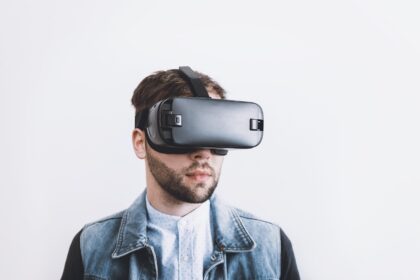
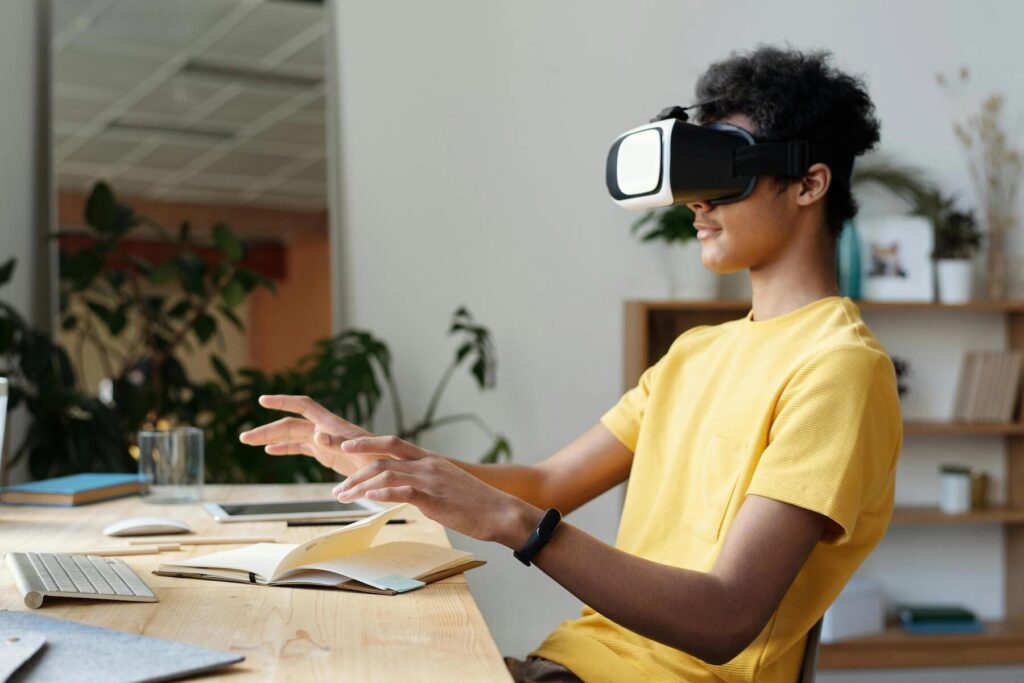
Virtual reality is a computer-generated environment designed to create the feeling that you are present inside a digital space. A headset places separate images in front of each eye and tracks your movement so the scene changes as you look or move around.
Main Components of VR
- Headset: provides the display, lenses, and usually movement tracking.
- Controllers: let you point, grab, press, or interact with virtual objects.
- Tracking system: measures the position of the headset and controllers.
- Audio: spatial sound can make direction and distance feel more realistic.
- Software: games, simulations, educational applications, and productivity tools create the experience.
Choosing the Right VR Device
VR Headsets
Standalone headsets contain their own processor and are easy to set up. PC-connected headsets can offer higher graphical performance but require a capable computer. Some systems also work with game consoles. Choose based on your budget, available hardware, preferred content, comfort, and the size of the play area.
Controllers and Accessories
Most modern systems include motion controllers. Optional accessories may include charging docks, improved head straps, prescription lens inserts, carrying cases, haptic accessories, and external headphones. Prioritize comfort and practical use rather than buying every accessory immediately.
Setting Up and Configuring VR
Prepare the Space
Clear the area around you so you cannot accidentally hit furniture, walls, pets, or other people. Follow the headset’s boundary or guardian setup and keep enough room for the type of application you plan to use.
Install and Calibrate the Hardware
Charge the devices, install required software, connect to your account, pair the controllers, and follow the on-screen calibration. Adjust the headset so the image is clear and the weight is distributed comfortably. If the device supports lens or interpupillary-distance adjustment, configure it according to the manufacturer’s instructions.
Explore VR Applications and Experiences
VR Gaming
Games are one of the most popular uses of VR because physical movement and motion controls can make interaction feel direct. Genres range from rhythm and fitness titles to exploration, simulation, racing, puzzle, and action games.
Education and Training
VR can simulate laboratories, workplaces, historical environments, machinery, or emergency situations. Training in a virtual environment can be useful when real-world practice is expensive, difficult, or risky.
Virtual Travel and Tours
Virtual tours can introduce museums, cities, natural landscapes, architecture, and cultural sites. They do not replace real travel, but they can provide context, inspiration, or access for people who cannot visit a destination physically.
Benefits and Challenges of VR
Benefits
- Immersive entertainment and interactive storytelling
- Hands-on simulations for education and professional training
- New tools for design, visualization, fitness, and collaboration
- A strong sense of scale and spatial understanding
Challenges
- Cost of headsets and compatible hardware
- Motion discomfort for some users
- Physical space requirements
- Battery life, heat, weight, and visual comfort
- Privacy considerations when devices collect movement or environment data
Using VR Safely
Take Breaks and Use Moderation
Start with shorter sessions, especially if you are new to VR. Stop when you feel nausea, dizziness, eye strain, headache, or unusual discomfort. Give your body time to adapt instead of forcing yourself through symptoms.
Adjust and Calibrate Correctly
A blurry image or badly positioned headset can make the experience uncomfortable. Recheck fit, lenses, boundary settings, controller tracking, and application comfort options such as snap turning or teleport movement.
Maintain Awareness and Supervision
Keep the play area clear and use appropriate supervision for children or inexperienced users. Follow age guidance and safety instructions provided by the hardware and software makers.
Conclusion
VR opens a wide range of experiences beyond traditional screens. The best way to begin is to choose a device that fits your needs, set it up carefully, explore a few high-quality applications, and learn which comfort settings work for you.
As VR hardware and software continue to improve, the technology is likely to become useful in even more areas of entertainment, training, education, communication, and creative work.